Forecourt Devices
The core component of the PSS forecourt controller application is its device interfaces. For each device protocol, these interfaces convert device specifications into standardized logical devices that perform essential functions relevant to each type of device. Examples of these devices include pumps, payment terminals, tank gauge systems, wash machines, and price displays.
EmuPSS does not handle device protocols directly; instead, it focuses exclusively on logical standard devices, which include:
Fuelling points
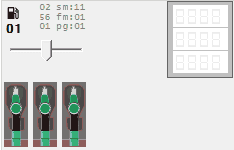 A dispenser is a device that dispenses fuel and is usually identified by the manufacturer's name and model. A dispenser can have multiple fuelling points, and each fuelling point can have several grade options. Fuelling points are the individual dispensing points in the forecourt. The double-sided dispenser represents two fuelling points. Each side works independently from the other. Single-sided dispensers represents one fueling point only.
You can add, delete, or update existing fueling points. Additionally, you have the option to duplicate a selected fueling point, which creates a new entry in the list with the same features as the original. This is particularly useful when entering two fueling points for the same double-sided dispenser.
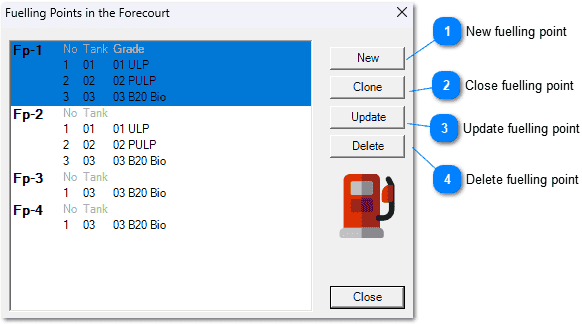
 New fuelling point
Clicking this button will open a detailed dialog for defining the fueling point using the unique ID you provided, and it will subsequently add the defined fueling point to the forecourt.
 Close fuelling point
Clicking this button will duplicate the selected fueling point to a newly created fueling point with a unique ID you provided.
 Update fuelling point
Clicking this button will open a detailed dialog for editing the selected fueling point and will subsequently update the selected fueling point.
 Delete fuelling point
Clicking this button will remove the selected fueling point from the forecourt, but only after you confirm your decision.
Update form
Grade options
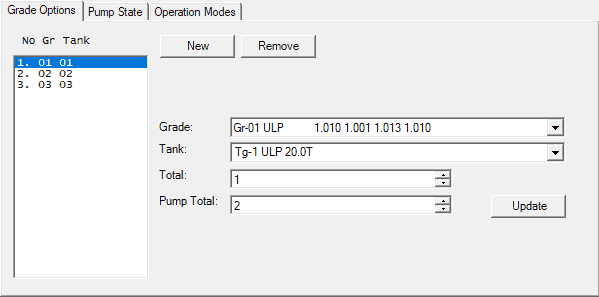
The grade options define the type of fuel dispensed from each nozzle at the fueling point. You can add new nozzles, remove existing ones, or update their properties.
A nozzle is characterized by the grade it dispenses and the tank from which that particular fuel grade is drawn. This is important because there may be multiple tanks containing the same fuel grade at the forecourt.
Additionally, you can set designated totals for the selected grade option.
After making any changes to the selected grade option, be sure to click the "Update" button to save your modifications.
The maximum number of grade options for a fueling point is eight. Grade option IDs may include holes, but this is not common practice.
Pump state
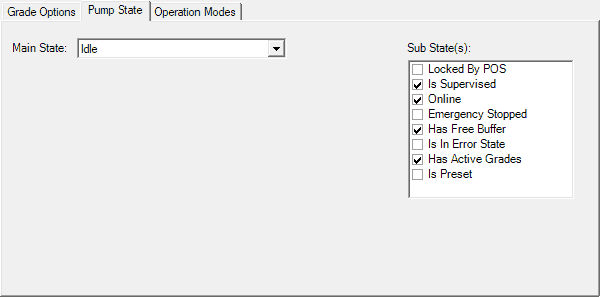
The fueling point status is determined by its main state and sub-state flags. You can set any state you wish for any fueling point. While EmuPSS is operating with POS clients, some sub-state flags and states may change in response to commands and state transitions.
Operation modes
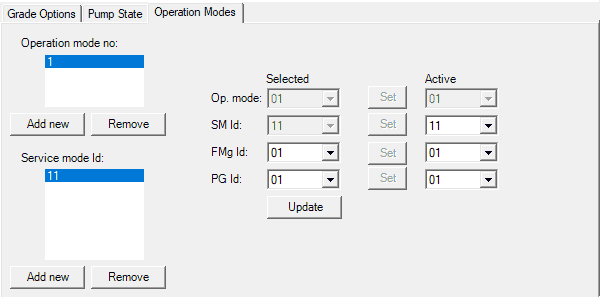
Service modes consist of a set of dispense control parameters that are generally active both before and after the filling process. In contrast, fuelling modes comprise a collection of parameters that are active during the filling process.
A fuelling mode group is a collection of fuelling modes designated for each grade, similar to how a price group represents a set of prices for each grade.
If you have multiple operation modes, selecting a different mode will change all associated parameters.
Using this dialog, you can update the currently selected fuelling mode group ID and price group ID for the active operation and service mode. Additionally, you can edit the currently active service mode, fuelling mode group, and price group for the fuelling point you are redefining.
The overall topic of operation, service, and fuelling modes is quite complex and extends beyond the scope of this emulation. However, what is important for EmuPSS is the price group, as prices from the active price group will be used to determine the price for a grade at the fuelling point during dispensing operations.
Tanks
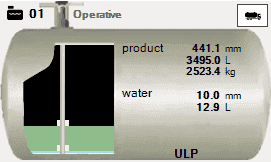 On a filling station, you'll always find one or more tanks holding the base products and dispensers, where the different nozzles are linked to one or more tanks. The fuel delivered to the customer is also known as a fuel grade. In addition to the pumps and tanks, a site can have a Tank Gauge System and normaly one Tank Gauge in each tank.
You can add, delete, or update existing tanks.
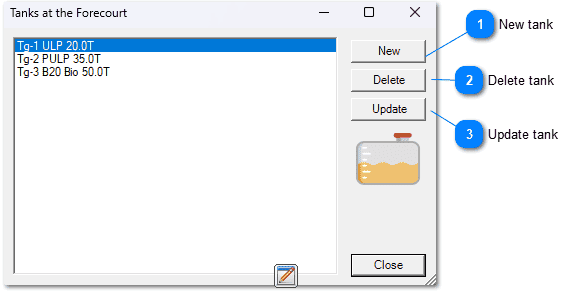 New tank
Clicking this button will open a detailed dialog for defining the tank using the unique ID you provided, and it will subsequently add the defined tank to the forecourt.
Delete tankClicking this button will remove the selected tank from the forecourt, but only after you confirm your decision.
Update tankClicking this button will open a detailed dialog for editing the selected tank and will subsequently update the selected tank.
Update form
Settings
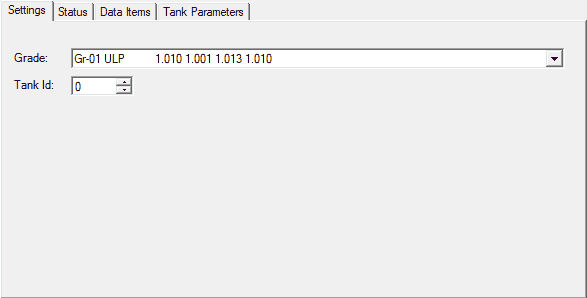
Tank Id is not used so you can leave it at value zero.
Status
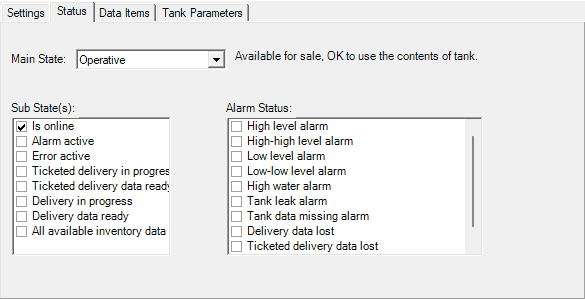
The status of a tank is determined by its main state, sub-state flags, and alarm flags. You can assign any state to any tank as needed.
Alarm values are set as percentages. For product alarms, these percentages are calculated based on the Gross Standard Volume relative to the Maximum Fill Capacity. For water alarms, the percentages reflect the water level in relation to the tank's height. HIGH_LEVEL = 0.95, HIGH_HIGH_LEVEL = 0.98, LOW_LEVEL = 0.06, LOW_LOW_LEVEL = 0.05, HIGH_WATER = 0.01.
Data items
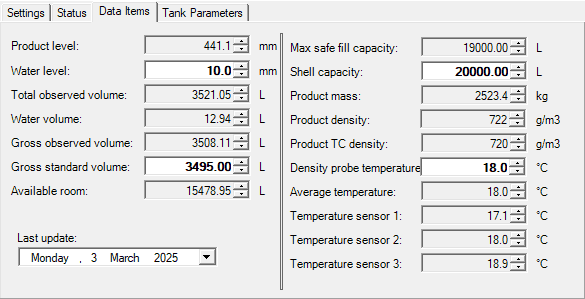
You can only update the values in bold; all other values are calculated automatically. The calculations use the density and volume temperature coefficient for the specific grade stored in the tank, along with the tank's height and shell capacity. These factors together define a hypothetical perfect cylinder that represents the tank's geometry.
Tank parameters
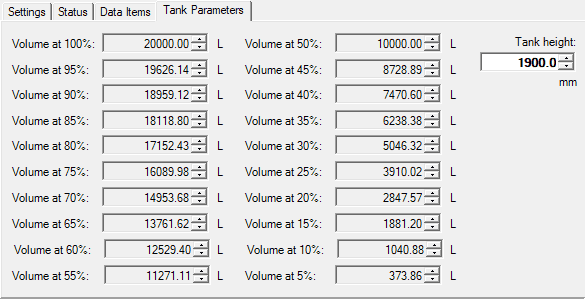
Tank height is the only parameter that can be updated. Tank height and shell capacity together define a hypothetical perfect cylinder, which was used to automatically calculate the table of volumes at different fulfillment percentages.
Wash points
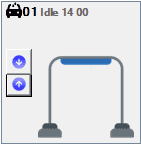 On a filling station, you can usually find one or more washing machines. Some stations are equipped with car washes. Car washes are sometimes offered free of charge or at a discounted price with a certain amount of fuel purchased.
You can add, delete, or update existing wash points.
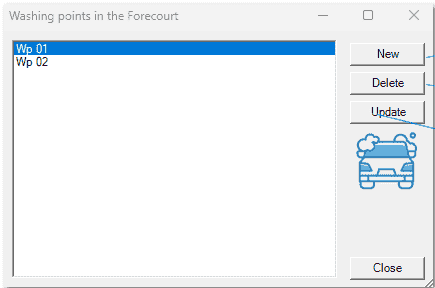 New wash point
Clicking this button will open a detailed dialog for defining the wash point using the unique ID you provided, and it will subsequently add the defined wash point to the forecourt.
Delete wash pointClicking this button will remove the selected wash point from the forecourt, but only after you confirm your decision.
Update wash pointClicking this button will open a detailed dialog for editing the selected wash point and will subsequently update the selected wash point.
Update form
Wash programs
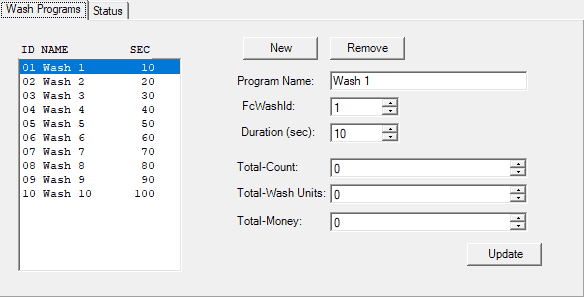
Each wash program used on a site is assigned a unique ID and name.
The duration is specifically added to the EmuPSS emulator to determine how long washing should last for a particular program.
Status
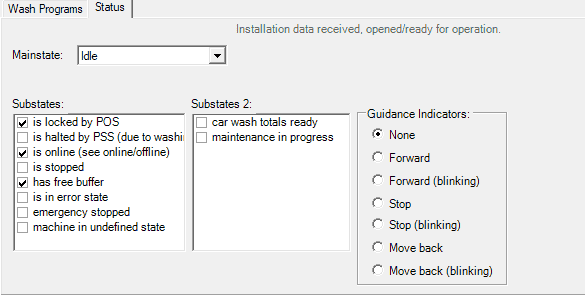
The status of a wash point is determined by its main state, sub-state flags, and guidance indicators. You can assign any state to any wash point as needed.
Price poles
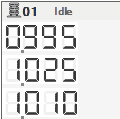 The prices displayed on the price poles are taken from the same price bank used for the pumps, so the POS only has to maintain one set of prices for the forecourt. Each price in the Price Bank can be linked to the positions on the price pole, and the price pole will automatically be updated when new prices are received from the POS.
You can add, delete, or update existing price poles.
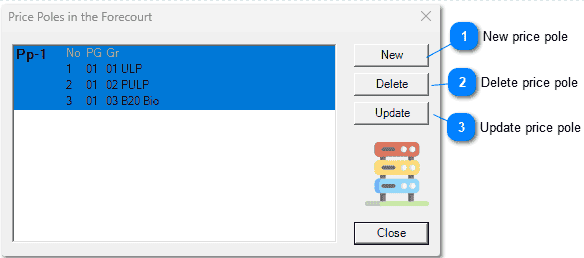 New price pole
Clicking this button will open a detailed dialog for defining the price pole using the unique ID you provided, and it will subsequently add the defined price pole to the forecourt.
Delete price poleClicking this button will remove the selected price pole from the forecourt, but only after you confirm your decision.
Update price poleClicking this button will open a detailed dialog for editing the selected price pole and will subsequently update the selected price pole.
Update form
Price pole options
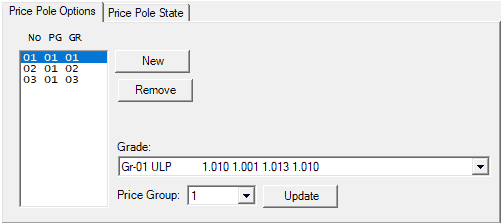
Price pole options determine which price and grade are displayed on each sign of the price display.
To set this up, you connect each position on the price pole with a specific grade and price group, from which the price for that grade is derived.
You have the ability to add new options or remove existing ones.
Additionally, after making any changes to a selected option, be sure to confirm the updates by pressing the "Update" button.
Price pole status
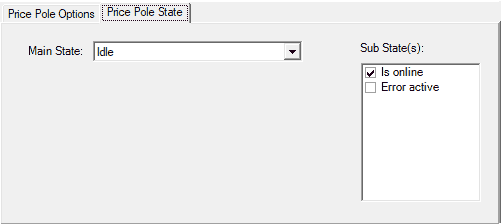
The status of a wash point is determined by its main state and sub-state flags. You can assign any state to any wash point as needed.
EPTs (Electronic Payment Terminals)
 The EPT can be a simple Pump Payment Terminal (PPT), an intelligent or unintelligent Outdoor Payment Terminal (OPT), or Indoor Payment Terminal (IPT) or a simple Attendant Tag Reader (ATR).
Supported payment methods are note and card payments, and any payment method can be combined with supplementary cards (e.g. bonus cards(. The protocol also supports payment for more than one fuel transaction in one payment sequence.
The EPT can be a simple Pump Payment Terminal (PPT), an intelligent or unintelligent Outdoor Payment Terminal (OPT), or Indoor Payment Terminal (IPT) or a simple Attendant Tag Reader (ATR).
Supported payment methods are note and card payments, and any payment method can be combined with supplementary cards (e.g. bonus cards(. The protocol also supports payment for more than one fuel transaction in one payment sequence.
You can add, delete, or update existing eletrconic payment terminals.
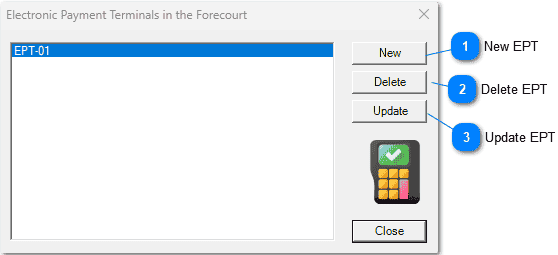 New EPT
Clicking this button will open a detailed dialog for defining the EPT using the unique ID you provided, and it will subsequently add the defined EPT to the forecourt.
Delete EPTClicking this button will remove the selected EPT from the forecourt, but only after you confirm your decision.
Update EPTClicking this button will open a detailed dialog for editing the selected EPT and will subsequently update the selected EPT.
Update form
EPT states
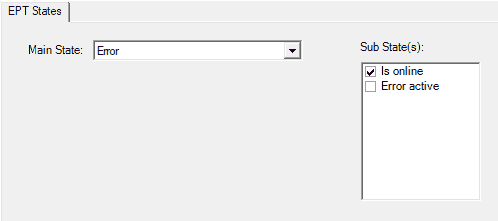
The status of a EPT is determined by its main state and sub-state flags. You can assign any state to any EPT as needed.