Introduction
EmuPSS is a software emulator that enables a computer to function as a real DOMS PSS 5000 device using the same IP address as the computer running EmuPSS.
It is recognized as a DOMS by the official Demo POS application and supports nearly all functionalities featured in that demo.
With EmuPSS, you can define your grades, fuel dispensers, wash points, tanks, price poles, and electronic payment terminals. The operations of these elements can also be simulated by EmuPSS.
This allows you to easily test different forecourt configurations from a single Windows application.
The default configuration of the forecourt includes four fueling points, three tanks, one EPT, a wash point, and a price pole.
Forecourt configuration
EmuPSS stores all configuration data in a single file with the ".emupss" extension. To start EmuPSS with a specific configuration, simply double-click the corresponding file.
In the main menu, you have the option to save the current configuration as a new file, allowing you to create a backup. There are also dialogs available for you to customize the setup according to your preferences.
Each time you start the application, it will attempt to load the setup from the last used file. If it fails to do so, you will be prompted to either create a new configuration or load a different file. You can choose to create a new configuration that is either empty or populated with default grades and fueling points.
General settings
These settings differ depending on the country where the software is used.
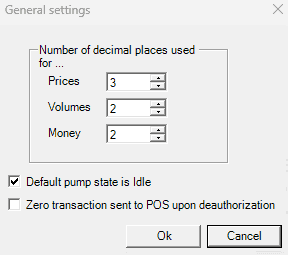
Decimal places indicate the position of the decimal point in respective values. For instance, if the decimal places are set to 0, no decimal places will be displayed. If set to 2, the value will be shown with two decimal places (e.g., 3.54).
Default state is Idle - If the option is checked when the transaction is completed, the pump will return to the Idle state. If the option is unchecked, the pump will enter the preauthorized state.
Zero transaction sent to POS upon deauthorization, If this option is checked, deauthorizing the fueling point will result in a zero transaction.
Grades
Grades represent the fuels provided to customers and can consist of either base products or blends of base products. Blends are now quite rare, and EmuPSS does not support them.
Each grade has a unique name and ID for identification. Additionally, a price is assigned to each grade for predefined price groups, which are explained in a separate chapter.
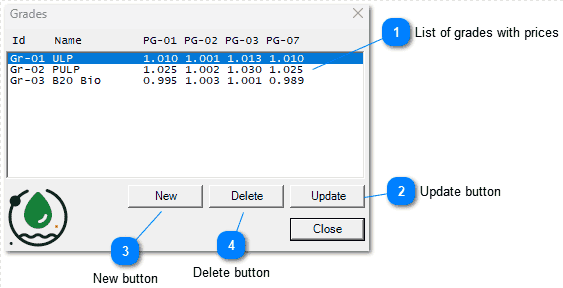
 List of grades with prices
Each grade in the list is shown with its ID, name, and price for every defined price group. Only one grade can be selected, and the buttons below are associated with the currently selected grade in this list.
 Update button
Pressing this button opens the form filled with the current values for the selected grade. You can update the name of the grade and/or the price for each defined price group.
Prices are entered separated by a space, and the price groups are shown above the editable box.
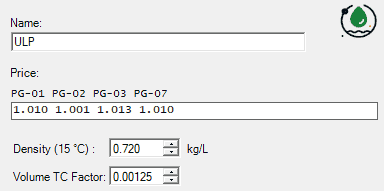
 Density of a fuel at 15°C measured in kilograms per liter.
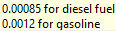 The volume temperature coefficient (TC) describes how volume changes with temperature, which can be approximated using a linear function.
 New button
Pressing this button opens a dialog to set the unique ID for a new grade. After that, the form displayed is the same as above, but all the relevant fields are empty.
 Delete button
Pressing this button will delete the selected grade after confirmation. This action should be undertaken with caution, as it may disrupt the configuration of the fuel dispensers, price poles and tanks.
Price bank
The fuel dispensed to customers at the forecourt is referred to as a grade, and each grade is assigned a unique ID. If each grade can have multiple prices, these prices are organized into different price groups. Each price group is also given a unique ID.
There is no limit to the number of price groups you can define in a price bank. However, each price group must include prices for all grades that are specified in the forecourt.
 Price groups
In the image above, there are four price groups (1, 2, 3, and 7). Selecting any of these price groups fills the control to the right with the grade prices defined in that specific group.
Grade pricesEach grade is represented by an editable box. To save space, there is no label, but you can check the grade associated with a particular control by hovering your mouse over it, which will display a tooltip with the grade's name. Prices are stored as integers within the range of 0000 to 9999. This is how the prices are actually stored internally, with only a decimal point inserted in the correct position to form the actual price.
New buttonTo add a new Price Group, simply provide an ID in the confirmation dialog. The dialog ensures that the ID is unique and within a valid range. The prices for the newly created Price Group will be copied from the first Price Group in the list. You can update these prices to your desired values after the insertion is complete.
Delete buttonClicking this button will delete the currently selected price group after you confirm your choice.
 Update button
Clicking this button will save the manually updated grade price values for the selected price group. If you do not click "Update" and instead switch to another price group, the changes you made to the current price group's prices will be lost.
The changes you make will only be saved if you close this dialog by pressing the OK button. If you close the dialog any other way, you will receive a warning that you may lose any changes you made.